
Editing a Member from the Admin
Free & ProEvery member's account and profile can be opened and changed directly from the admin - their display name, email, role, profile URL, avatar and cover photo, and every custom profile field they have (or have not) filled in. This is separate from a member editing their own profile: it needs the WordPress manage_options capability, so only administrators can do it, and it works even when the member cannot or will not fix something themselves.
Why use it
Support requests are the main reason this exists. A member locked out of their email, unable to clear a bad value from a required field, or asking you to fix a typo in their bio has no way to do any of that themselves if their account is stuck - and you should not have to sign in as them to help. Opening their record from BuddyNext > Members and using Edit gives you the same fields they would see on their own Edit Profile screen, from your own admin session.
Where to find it
Go to BuddyNext > Members, find the member in the list, and select Edit in their row's actions (next to View, which opens their public profile in a new tab instead).
What you can change
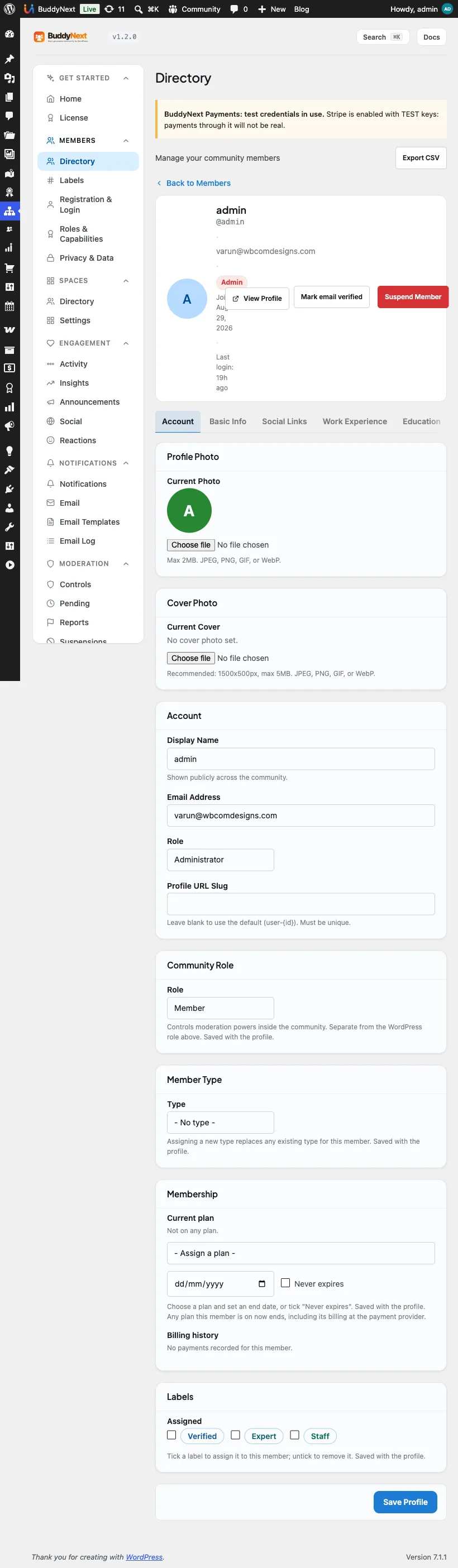
The edit screen is organized into an Account tab plus one tab per profile field group, matching the groups you have built (see Custom Profile Fields).
| Section | What you can change |
|---|---|
| Account - Profile Photo | Upload a new avatar, or remove the current one. Same 2 MB / JPEG, PNG, GIF, or WebP limit as a member's own upload. |
| Account - Cover Photo | Upload a new cover photo, or remove the current one. Same 5 MB limit as a member's own upload. |
| Account - Account | Display name, email address, WordPress role, and the member's profile URL slug (their handle - see Setting a username). |
| Account - Member Type, Membership, Labels | Rendered here by the relevant feature when it is active - see Member Types for the type dropdown. |
| Each profile field group's tab | Every field in that group, flat or repeater, with the same input control the member sees on their own Edit Profile form. |
Hero actions above the tabs also let you mark the member's email verified (see Email Verification) and suspend or unsuspend the member, when those features are on.
Selecting Save Profile submits everything on the page at once.
Good to know
- The same validation applies. A save goes through the identical profile-save logic a member's own edit uses - a required field left empty, an out-of-range number, or a malformed value is rejected with the same message, attributed to the same field, rather than silently accepted from the admin screen.
- The whole save is atomic. If any field fails validation, nothing on the page is saved - not even the fields that were fine. This avoids a half-written profile that no longer matches what you see on screen. Fix the flagged field and save again.
- Email and profile-URL changes are checked for conflicts. An email already used by another account, or a handle already taken, is rejected rather than silently applied - see Setting a username for the handle rules.
- You edit values, not privacy. This screen changes what a field holds; it does not change who is allowed to see it. Each field's audience stays whatever the member (or the field's default) has set - see Custom Profile Fields.
- Repeater entries work the same way. Work Experience, Education, or any repeating group you have built can be edited entry by entry, and new entries can be added, from the group's tab.
- This is not the same as the WordPress user-profile screen. wp-admin's own Users > Edit User screen still exists and edits the WordPress account directly; this BuddyNext screen is where you edit the community-facing profile the member and everyone else actually sees.
Free vs Pro
Editing a member's account and profile fields from the admin, including avatar and cover management, is part of BuddyNext free. Advanced Pro field types (Location, extended date, advanced number, advanced multi-select) render here with their own input controls once Pro is active, the same as they do on a member's own Edit Profile form - see Advanced Profile Field Types (Pro).
Related
- Member Profiles - the profile a member edits themselves, and the handle rules this screen also enforces
- Custom Profile Fields - the groups and fields that fill each tab
- Member Types - the type dropdown that appears in the Account tab
- Email Verification - marking a member verified from this same screen
- Member Directory - the admin members list this screen opens from