
Moderation Queue
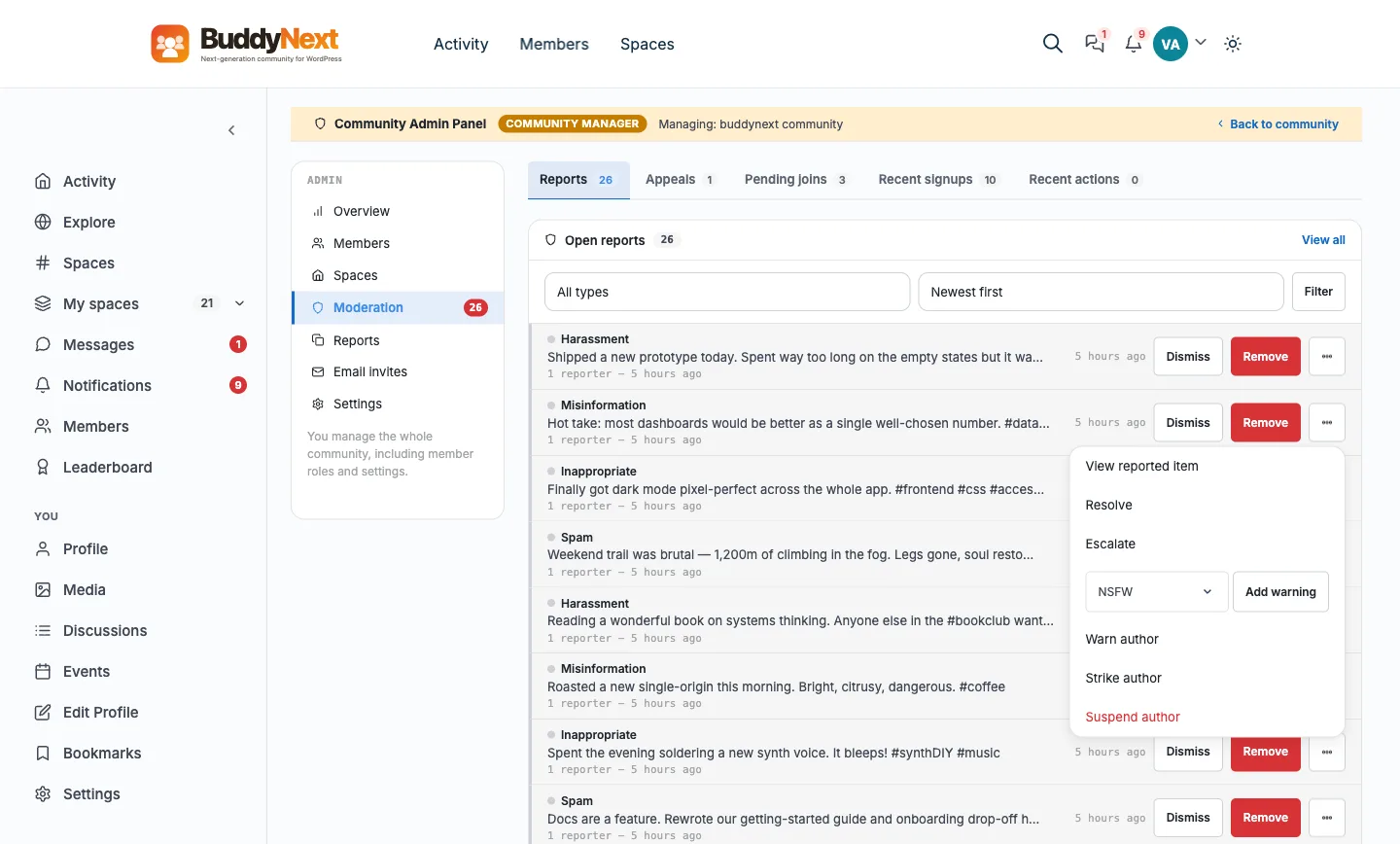
Free & ProThe moderation queue is where moderators review reported content and act on it: dismiss a report, escalate it, resolve it, or take action on the content or the member. It lives in the Community Admin panel, under Moderation > Reports.
Why use it
A community's reports are only useful if someone can act on them quickly and fairly. The queue turns a stream of individual reports into one organized worklist: grouped by item, filterable by type, sortable by how many people reported it.
Reports on the same post are merged into one row, so a moderator acts once per piece of content instead of clicking through five identical reports. Every row carries the reason, the first line of the reported content, and how many members reported it, so a decision is grounded in what was actually said rather than guesswork.
Who can open it
| Who | Where they moderate |
|---|---|
| Site administrators and community moderators | Community Admin > Moderation - every report in the community. |
| Space owners and space moderators | Their space's own Moderation tab - reports on that space's content only. See Space Roles and Moderators. |
| Site administrators only | BuddyNext > Moderation in wp-admin - the same reports as a full table (see below). |
Members without moderation permission cannot open the Community Admin panel.
Reading the queue
Each row is one reported item, with all of its reports merged:
- Reason - the reason given, with a coloured dot for how urgent the item is (more reporters, stronger colour).
- What was reported - the first line of the post or comment (a shared discussion, event or listing shows its title), or the member's or space's name.
- Reporters and age - how many members reported it, and when.
On a reported profile, the More menu's member actions read Warn member, Strike member and Suspend member, and act on the reported member.
The list shows 20 items per page, with Previous and Next links underneath.
Filtering and sorting
Above the list:
- Type - All types, Posts, Comments, Messages, Profiles, or Spaces.
- Sort - Newest first, or Most reported (the items with the most reporters first).
Choose a type and sort, then select Filter. Paging keeps your choice.
Note: Reported photos and videos do not come here. They go to the media plugin's own review queue, under WPMediaVerse > Media Moderation in the WordPress admin, because that plugin owns the media. If your community allows photo and video uploads, put both queues on your moderators' rounds.
Acting on a report
Two actions sit on every row:
- Dismiss - closes the report with no action. Use it when the content is fine and the report does not hold up.
- Remove - takes the reported post, comment, or message down and closes the report.
Everything else is in the row's More menu:
- View reported item - opens the post, comment (on its post), profile, or space in a new tab. Not offered for direct messages, and not offered once the item has been deleted.
- Resolve - closes the report as handled.
- Escalate - flags the report for a more senior decision. The row stays in the queue.
- Content warning (posts only) - blurs the post behind a label instead of removing it. See Content Warnings.
- Warn author - sends the author a warning without a penalty.
- Strike author - records a moderation strike against the author.
- Reverse last strike - undoes the author's most recent strike. Shown only while the author has an active strike, and only to moderators who may issue strikes.
- Suspend author - suspends the account. An author who is already suspended shows an "Already suspended" badge instead.
Warning, striking, and suspending act on the person rather than the single item. For how strikes, suspensions, warnings, and appeals work, see Moderating a Member.
On a phone, each row stacks: the report on top, the actions underneath.
Every action is logged
Every moderation decision - dismiss, remove, warn, strike, reverse, suspend - is written to a permanent moderation log. The log is the audit trail of who did what and when, so a community can answer "why was this removed" and review its moderators' decisions over time.
You can filter the log and export it to CSV. The background jobs that maintain moderation report their status - and how long log entries are kept - in the admin hub's tools.
When nothing matches the current filter, the queue says so. An empty queue is the normal, healthy state, not an error.
The wp-admin mirror (for site administrators)
The same reports also appear in the WordPress admin, under BuddyNext > Moderation. It reads and writes the same reports as Community Admin, but it is restricted to whoever can manage the site, and it groups the whole moderation workflow into tabs:
| Tab | What it shows |
|---|---|
| Pending | Posts held for approval before they went live. Empty on almost every site - see Content Safeguards for when this applies. |
| Reports | The same report queue, as a table with type, reason, and sort filters. |
| Suspensions | Every active suspension, with a one-click lift. See Moderating a Member. |
| Appeals | Pending appeals awaiting a decision. See Appeals. |
Site administrators also get a View all link from Community Admin to this table. Both surfaces write to the same moderation log.
Good to know
- Reports are grouped per item. Multiple reports on the same post are merged into one row, with the reasons combined and the reporter count shown.
- Privacy on direct messages. A reported direct message reads "Private message (content hidden)" and has no "View reported item" link, so a moderator can act on the report without opening the private conversation.
- Concurrency. The queue is shared. An item another moderator already handled may have changed state by the time you reach it. Reload to see the current list.
- Community moderators do not need wp-admin. Everything a moderator does, including paging through the whole queue, happens in Community Admin.
Free vs Pro
The moderation queue, its filters, the report actions, and the moderation log are all part of BuddyNext free. Pro adds higher-volume tooling for teams that process many reports, including acting on multiple items in one pass. See Bulk Moderation in the Pro documentation.
Related
- Reporting Content - how items arrive in the queue
- Moderating a Member - what warn, strike, and suspend do
- Community Roles and Moderators - who may open the queue
- Content Warnings - a lighter-touch action than removal for a single post
- Bulk Moderation - acting on many queued items at once in Pro