
Gating Spaces Behind a Membership
Pro featureA gated space is a space only members on a particular plan can join. When someone without the right membership tries to enter, BuddyNext shows a paywall - a friendly upgrade prompt with your call to action - instead of letting them in.
Before you start: Gated spaces come with BuddyNext Pro and build on Membership Plans. You need BuddyNext Pro active and at least one membership plan set up before you can gate a space. To sell access through checkout you also need a payment gateway connected (see Membership Plans).
Why use it
Open spaces help members find each other. Gated spaces let you give paying members something special the rest of the community cannot get, which is one of the clearest reasons for someone to upgrade.
Use a gated space when you want:
- A members-only area - a mastermind, a paid course cohort, a VIP lounge - that only subscribers of a specific plan can enter.
- A reason to upgrade that members can see. The paywall on a locked space is the most direct nudge you have: a member who wants in is one click from your pricing page.
- One purchase that unlocks several premium spaces at once, by selling a plan that carries the Gated Space Access perk.
For the member, a gated space is a clear boundary: this is part of what your membership includes. For you, it is access control that looks after itself - once a space requires a plan, every join attempt is checked automatically, on the website and in any connected app, with no per-member work.
How it works
What gates a space
A space is gated when you tie it to one or more membership plans. Any member holding one of those plans can join it. For example, a space opened by both your Basic and Premium plans can be joined by Basic members and Premium members alike, while a space opened only by Premium is Premium-only.
This works both ways: one plan can unlock several spaces, and one space can be opened by several plans. You set the same relationship from either direction (see Setting it up), and the two screens always agree.
When a space is gated:
- A member on any of the plans that open it (or on a plan that grants the Gated Space Access perk) can join normally.
- A member without any of them is blocked, and the join is never recorded.
The Gated Space Access perk is the all-access pass. A plan that grants it lets its subscribers into any gated space, whatever specific plans each space asks for. Use it when you want one plan to unlock everything, instead of listing spaces on the plan.
What a blocked member sees
When a logged-in member who lacks access opens a gated space, BuddyNext shows the paywall in place of the space content: a heading ("This space is available to members only."), your description, and an upgrade button. When a space is opened by more than one plan, the prompt names them cheapest-first (for example "Available on Basic or Premium"), so the member sees the most affordable way in. A member who already holds any plan that opens the space - or an all-access plan - is never shown the paywall. The button either starts checkout (when a gateway price is linked to a required plan) or points to the call-to-action link you set. The same paywall content is also returned through the API when a join is declined, so a headless or third-party front end can show its own version.
Setting it up (for owners)
Gating a space is a two-part setup: mark the space as gated, then configure the paywall prompt members see.
Step 1: Choose which plans open the space
You can set this from either direction - both edit the same relationship, so whichever you use, the other screen shows the result.
From the space (Monetization > Paywall). Below the paywall prompt settings you'll find the space gate: pick a space, then tick every plan that should open it (a space can list more than one), and select Apply gate. To open a space back up, clear all the plans and apply. Spaces that are already gated are marked in the picker. The picker shows 50 spaces at a time with a search box next to it - on a community with hundreds or thousands of spaces, search rather than scroll. The table of already-gated spaces below is paginated, showing the page you are on and the total number of gated spaces.
From the plan (Monetization > Plans > Edit). Each plan's edit screen has a Spaces this plan unlocks field: search for a space by name and add it as a chip; the members on that plan can then enter it. Adding a space that is currently open warns you first, since it puts that space behind the plan. When the plan carries the All gated spaces perk, this field is turned off (the plan already opens every gated space) and your existing choices are kept.
Once a space is linked to the plans you want, everything else - the join check, the paywall, and the per-space settings row on the Paywall tab - works automatically.
One limitation to know about:
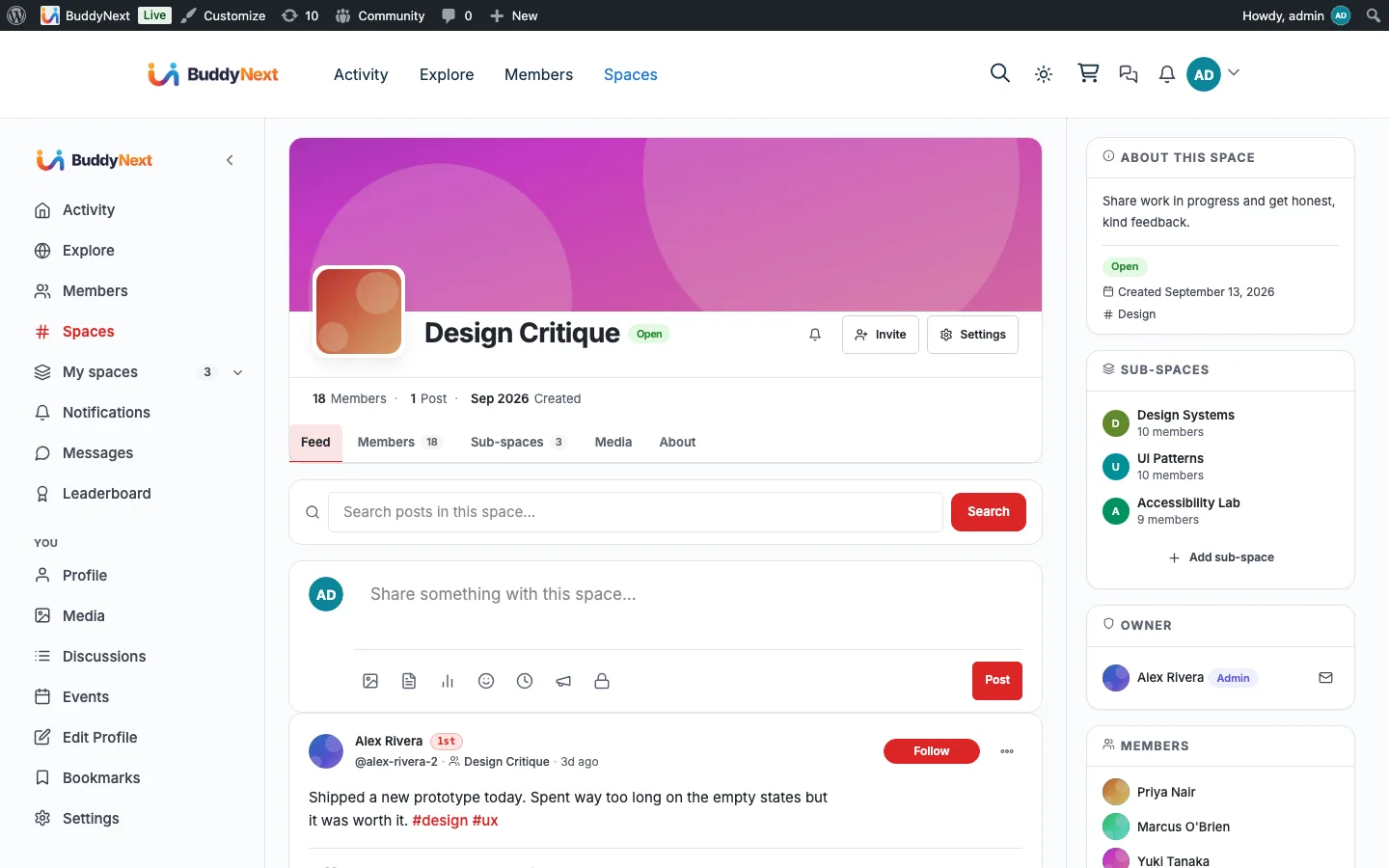
- Gated spaces are not visually badged. A space does not show a lock icon or "members only" label in space directories or listings. The gate is enforced when someone tries to join, and the paywall appears when a blocked member opens the space, but there is no badge marking the space as gated from the outside.
Step 2: Configure the paywall prompt
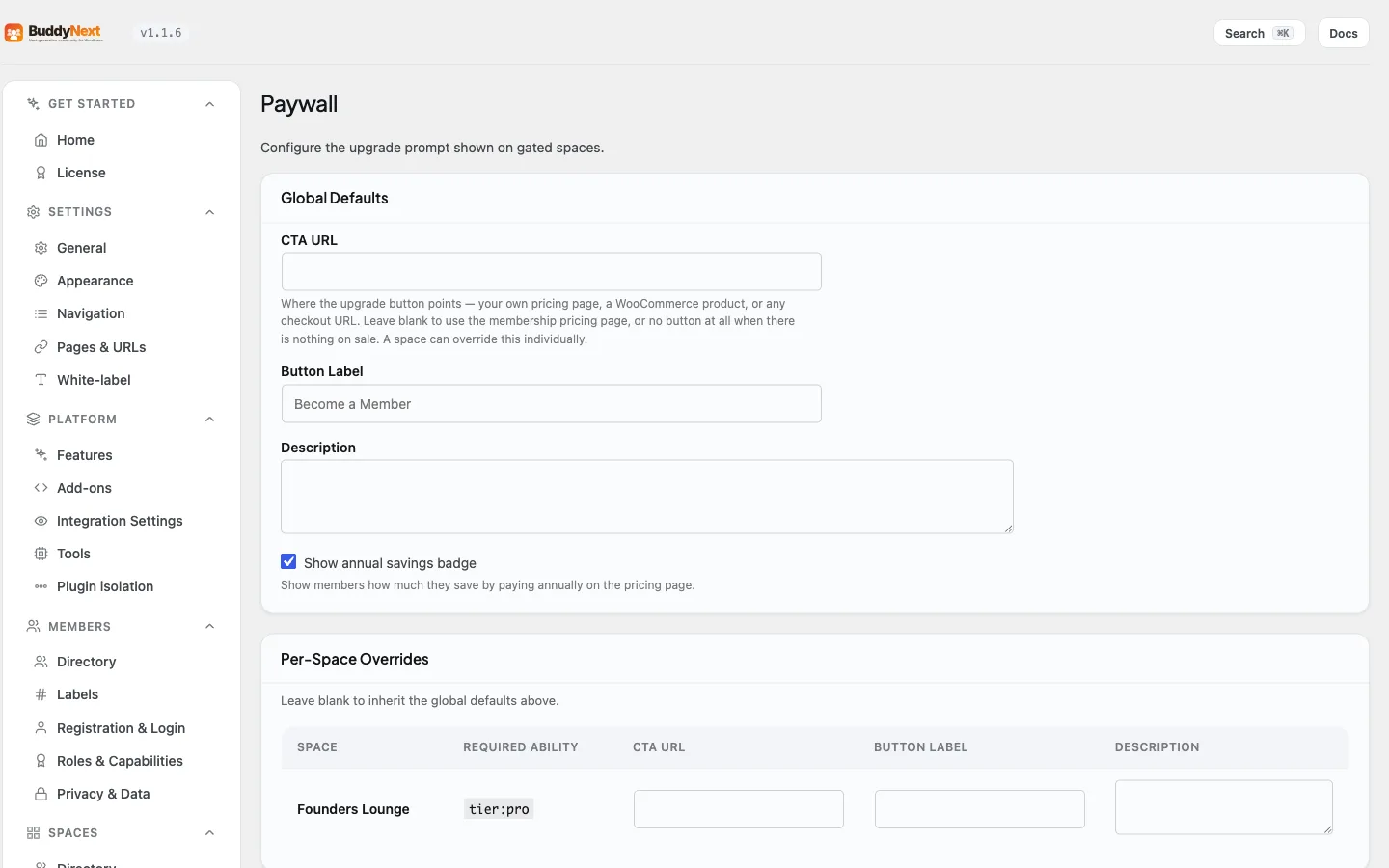
Open BuddyNext in wp-admin, go to the Monetization section, and choose the Paywall tab. Here you set the upgrade prompt members see when they hit a gated space.
Global defaults
These apply to every gated space unless a space overrides them.
| Setting | What it does | Default |
|---|---|---|
| CTA URL | Where the upgrade button points (for example your pricing page). Leave blank to hide the button. | (empty) |
| Button Label | The text on the upgrade button. | Become a Member |
| Description | The copy shown under the paywall heading. | (empty) |
Per-space overrides
Below the global defaults, the Paywall tab lists every gated space with the plan it requires and its own CTA URL, Button Label, and Description fields. Fill any of these to override the global default for that one space; leave them blank to inherit the global values. This lets you point each premium space at a different upgrade page or word its prompt differently while keeping one shared default for the rest.
Tip: Set a sensible CTA URL and description in the global defaults first - usually a link to your pricing page. Then add a per-space override only where a particular space needs its own wording or destination.
Good to know
- The gate works everywhere. Once a space is gated, the join check runs on the website and in any connected app alike. A blocked member is never added, even from an app.
- Access can come from a plan or the all-access perk. A member gets in if they are on the plan the space requires, or if their active plan grants the Gated Space Access perk.
- Losing the subscription re-locks the space. When a subscription expires or is revoked, access is removed and the member can no longer enter the gated space.
- The paywall handles half-finished setups gracefully. When no gateway price is linked to the required plan, the button uses your CTA URL. When neither a price nor a URL is set, the prompt shows a friendly "not configured" notice rather than failing - so a partial setup never breaks the page.
- No badge yet. Because gated spaces are not marked in directories, tell members which spaces are premium in your space description or pricing copy until a visible badge ships.
Free vs Pro
Gating spaces behind a membership, the paywall prompt, and the per-space override settings are all BuddyNext Pro and depend on Membership Plans. BuddyNext Free has open and request-to-join spaces but no membership-based gating.
Within Pro, both linking a space to a plan and the paywall prompt are managed from the admin Paywall tab. A visible badge on gated spaces is planned but not part of the current release.
Related
- Membership Plans - define the plans a gated space can require.
- Content Protection - lock individual posts with the same memberships.
- Spaces Overview - how spaces work before you gate one.
- Stripe Payments - take payment when a member hits the paywall.